


 5 / 8
5 / 8

Copying the new
map data from PC
to SD card
For Discover Media
As the SD card remains in the head unit for
the Discover Media system it needs to be
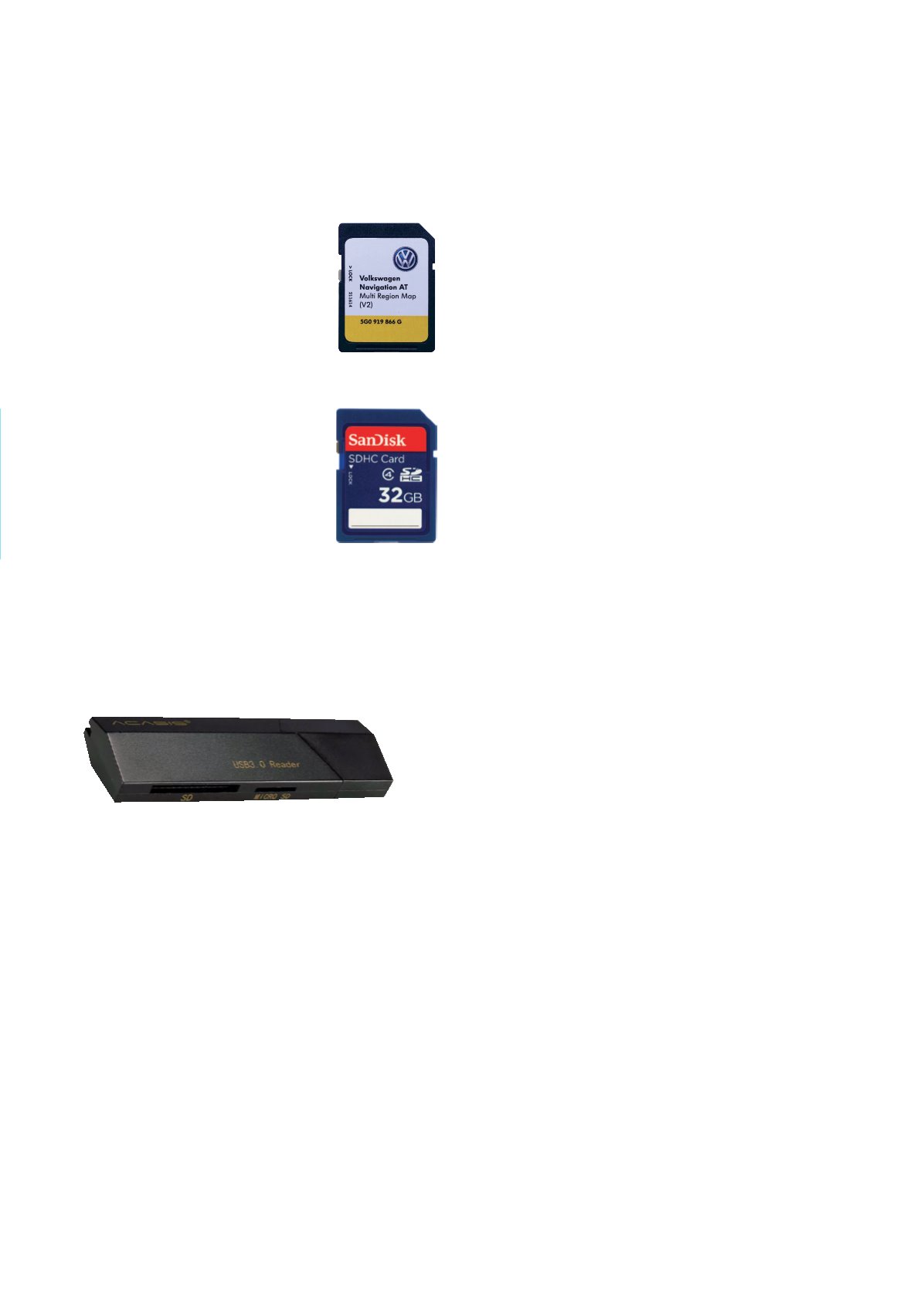
automotive grade. Due to this, please ensure
you are using the Volkswagen Navigation AT
Multi Region Map (V2) pictured.
For Discover Pro
As the new map data will copy from the SD
card to the Discover Pro system’s hard drive
and is then removed, this SD card does not
need to be automotive grade. It will need to
be larger than the above-referenced SD card
as the map data for Discover Pro is ~20GB.
A 32GB SD card should be used.
For Discover Media & Discover Pro
1. If the switch on the SD card is down in the LOCK position, please
slide it up to UNLOCK it
2. Insert the SD card into the provided external card reader
3. Insert the USB end of the external card reader into your PC’s USB
port
4. Navigate to the SD card drive on your computer, right-click on it,
and select FORMAT to erase any existing data
5. Open the folder on your computer with the downloaded map data
6. Extract the files to the SD card. The files must be stored directly
in the root directory of your SD memory card, they should not be
stored in a subdirectory
7. Once extraction is complete, eject the SD card from your computer
or the card reader. Now slide the switch on the SD card down into
the LOCK position.
Importing the data to
the Discover Media or
Discover Pro system
Now that the freshest map data for either Discover Media or
Discover Pro has been copied to a compatible SD card, the card can
be used to update the system.
For Discover Media
1. Replace the SD card in slot 2 of your Discover Media system with
the SD card containing the freshest map data
2. The updated navigation maps will become available as soon as the
system recognises the SD card
3. Please ensure the SD card is left in slot 2 and not removed until it
is switched out the next time a map update is available.
HELPFUL HINT:
As the SD cards are interchangeable, it is a good
idea to have some extra Volkswagen Navigation AT Mutli Region Map
(V2) SD Cards which have already had the freshest data copied to
them for Discover Media. These SD cards are automotive grade and
can remain in the Discover Media head unit.
For Discover Pro
1. Insert the SD card into one of the SD card slots of your Discover
Pro system
2. Select:
MENU→SETUP→VERSION INFORMATION→UPDATE SOFTWARE
3. The data will now be copied to the Discover Pro system’s internal
hard drive and the SD card can be removed and reused for another
vehicle’s Discover Pro system.
IMPORTANT:
• This process takes approximately 2 hours depending on the SD card
used
• The ignition must remain switched on while copying is in progress
• The navigation function is not available during copying
• Please make sure that the battery is sufficiently charged to
complete the update
• If the vehicle is parked, switch off anything that may drain the
battery and is not needed such as lighting, fan, headlights, seat
heating, etc
• If necessary, connect a charger to the battery
• Should the procedure be interrupted – if the engine is switched off,
for example – copying will automatically resume at the point of
interruption as soon as the ignition is switched on again.